AI 3D Model Generator
Generate 3D models with AI and use them in AR
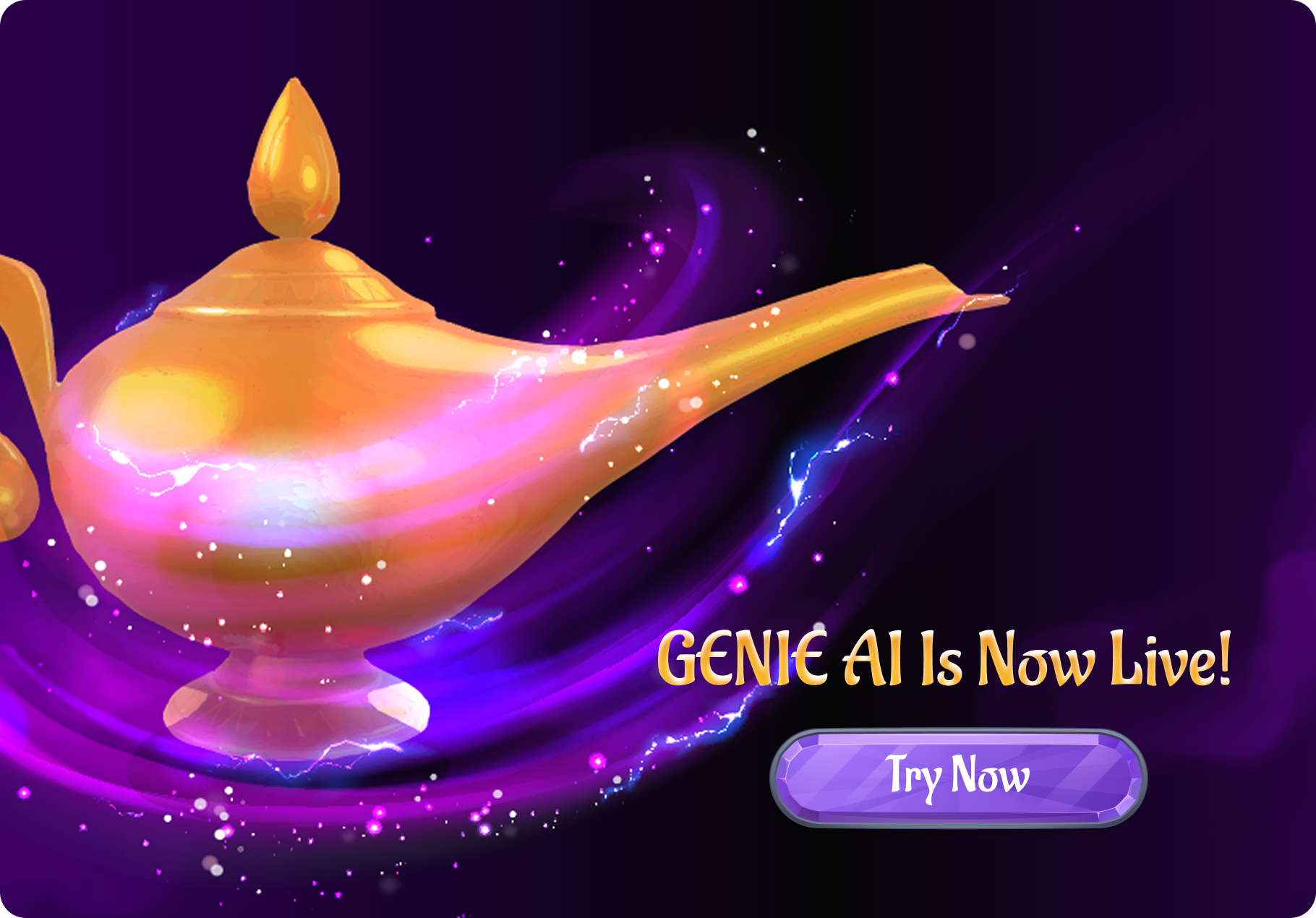
ARLOOPA Studio includes a Genie AI workflow for turning prompts or reference images into 3D assets. Generate the model, review the preview, save it into Studio, and use it in your AR projects without leaving the platform.
Text to 3D
Describe the object you want and generate a first 3D result directly inside Studio.
Image to 3D
Use one to four reference images to generate a 3D model from visual input instead of starting from text alone.
AR-ready handoff
Save the generated result into Studio and reuse it in AR creation flows instead of exporting to a separate toolchain first.
Workflow video
Watch the current Genie AI 3D workflow in action
This demo video is the clearest way to show how Genie AI currently works in Studio: generate from text or images, review the output, and move the saved model into your AR workflow.
Available now
Prompt to 3D
Generate a first model from text with style, symmetry, and pose controls in the current flow.
1-4 images to 3D
Use one image or a small reference set when visual input is stronger than a text-only prompt.
Save into Studio
Keep the generated result in your workspace so it can be reused inside AR projects later.
How it feels in Studio
A cleaner path from idea to usable 3D asset
Genie AI is useful because it stays close to the actual AR build flow. You are not generating in one tool and rebuilding the work manually somewhere else.
Describe the object
Start from a prompt when you need a fast concept model or want to explore several directions without manual 3D work first.
Generate the model
Run text-to-3D or image-to-3D, then review the preview and refine the result through the current Genie workflow in Studio.
Save and build in AR
Store the generated asset in Studio and continue the AR experience instead of restarting the workflow in another tool.
Current workflow
What the current Genie AI flow actually supports
The current Genie AI workflow in ARLOOPA Studio supports two main generation modes: text-to-3D and image-to-3D. In text mode, users can describe the object they want and refine the request with options such as art style, symmetry, and pose mode before generation starts.
In image mode, users can upload up to four source images and optionally add a texture or style prompt. Text generations currently move from preview into a texture application step before saving, while image-based generations can be saved once the model is ready. After that, the result is stored in Studio for later reuse inside AR scenes.
- •Text-to-3D generation from a written prompt
- •Image-to-3D generation from one to four source images
- •Prompt refinement controls for text mode, including style, symmetry, and pose preferences
- •Preview, texture, save, and reuse flow inside Studio instead of a disconnected external generator
Studio flow
How teams use the generated model inside ARLOOPA Studio
Genie AI is part of the Studio creation workflow rather than a separate standalone product. Teams start by choosing the main AR format they want to build, then select Genie AI as the content-generation path where it is supported.
After the model is generated and saved, it becomes part of the Studio workflow and can be reused in later AR work. That makes Genie AI useful for concepting, quick campaign production, and internal iteration when a team needs a 3D asset fast.
- 1Open the create flow and choose the main AR format first
- 2Select Genie AI where the content-generation option is available
- 3Generate the model from text or images and review the preview
- 4Save the result into Studio and continue building the AR experience
Best fit
When an AI 3D model generator is the right choice
This workflow is strongest when speed matters more than a traditional asset pipeline. It works well for fast prototypes, pitch visuals, early campaign concepts, educational experiments, and situations where the team wants to test an idea before commissioning a fully custom 3D asset.
It is less suitable when the project requires exact production geometry, strict brand review, or a highly controlled hero asset from day one. In those cases, Genie AI is still useful for ideation, but the generated model should be treated as a starting point rather than the final approval-ready asset.
- •Use it for early concepting, mockups, and fast campaign iteration
- •Use it when the team needs a 3D object before a manual modeling pass exists
- •Review scale, quality, and scene fit before publishing any generated model live
- •Switch to a manual 3D pipeline when the asset must meet strict production standards
FAQ
AI 3D Model Generator FAQ
Can I generate 3D models from both text and images?
Yes. The current Genie AI workflow supports text-to-3D and image-to-3D generation inside ARLOOPA Studio.
How many reference images can I upload in image-to-3D mode?
The current image-based workflow supports up to four source images in a single generation request.
Does the generated model stay inside Studio?
Yes. After saving, the generated asset is stored in the Studio workflow so it can be reused in later AR work instead of being lost after preview.
Is an AI-generated 3D model automatically production-ready?
Not always. Teams should still review quality, scale, visual fit, and scene relevance before treating a generated result as final.
Explore more
Related ARLOOPA Studio pages
Review related AR workflows and use cases before planning the next build.
How to Create a Genie AI AR Experience
Read the step-by-step guide for using Genie AI inside the Studio create flow.
Open pageWebAR Builder
See how generated 3D assets can fit into browser-based AR workflows.
Open pageAR Templates
Combine generated assets with reusable AR starting points when you need faster delivery.
Open page