Academy tutorial
How to Create Marker-Based AR
Marker-based AR starts with a printed or digital image that users scan. This guide explains how to prepare the marker, choose 3D or video content, and plan a reliable scan-to-content journey in ARLOOPA Studio.
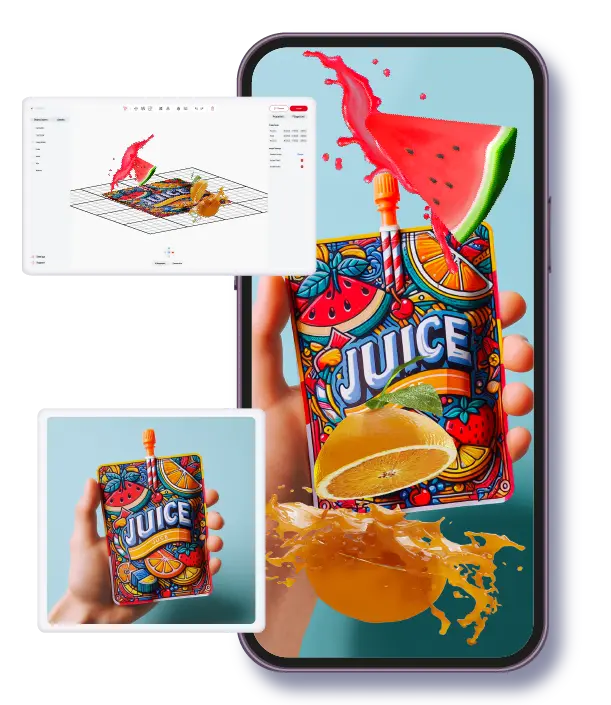
Best for
Packaging, posters, cards, books, labels, catalogs, classroom materials, and exhibition print where a clear image can become the AR trigger.
Watch out for
Marker quality drives reliability. Low-contrast, repetitive, or glossy markers can make scanning harder.
ARLOOPA fit
ARLOOPA Studio provides the marker-based creation path while new current-design Academy marker videos are pending.
Marker quality
Marker image requirements
The marker is the image users scan to open the AR content. It should be visually distinctive, high contrast, and printed or displayed clearly. A weak marker makes the whole experience feel unreliable even if the AR content is good.
Avoid plain logos, repeated patterns, large blank areas, and images that look similar from every angle. A strong marker has varied details that the camera can recognize quickly.
- •Use a high-resolution image with unique visual detail.
- •Avoid glossy placement if glare will hide the marker.
- •Keep enough quiet space around the marker when it is printed.
- •Test the marker at the real size and viewing distance.
3D content
3D model marker AR
A 3D model is a strong fit when the scanned image should reveal an object people can inspect. This works well for products, learning cards, museum artifacts, characters, and campaign objects.
Before publishing, check file size, scale, orientation, and mobile performance. A model that looks impressive on desktop may still be too heavy or too detailed for a smooth phone experience.
- •Use optimized GLB/3D assets where possible.
- •Make the first view clear as soon as the marker is recognized.
- •Use simple instructions if the user should rotate, tap, or move around the model.
Video content
Video marker AR
Video marker AR is useful when a package, poster, card, book page, or label should open a short explanation, brand story, instruction, or animated scene. It is often simpler than a full 3D model and can be easier for visitors to understand immediately.
Keep videos short, compressed, and directly related to the scanned image. If the video does not answer why the user scanned the marker, the experience will feel disconnected.
- •Use short clips that load quickly on mobile networks.
- •Match the video topic to the scanned image.
- •Test whether the marker remains stable while the video plays.
Studio steps
How to create marker-based AR in Studio
The exact content type can vary, but the core workflow is the same: choose marker-based AR, upload the marker, add the content, preview, publish, and test the scan on a real phone.
Treat the first published version as a test. Scan the marker from different angles, distances, and lighting conditions before using the experience publicly.
- 1Open ARLOOPA Studio and choose marker-based AR.
- 2Choose the destination path that matches the project.
- 3Upload the marker image users will scan.
- 4Choose the content type, such as a 3D model, image, video, audio, or AI video.
- 5Upload or create the content and position it in the scene.
- 6Preview the experience in Studio.
- 7Publish and test the scan on a real phone with the real marker.
Use cases
Packaging, print, education, art, and catalog use cases
Marker-based AR is practical when the physical surface already exists. Packages can trigger instructions or brand stories, catalogs can open 3D product views, books can reveal educational content, and museums can add layers to labels or artworks.
The best marker-based projects make the scan feel natural. The printed image should be part of the content story, not just a random trigger.
- •Packaging: recipes, product instructions, campaign stories, and loyalty content.
- •Print media: posters, brochures, catalogs, postcards, business cards, and books.
- •Education: interactive flashcards, worksheets, lab diagrams, and classroom projects.
- •Art and culture: exhibition labels, animated artworks, and artifact explanations.
FAQ
How to Create Marker-Based AR FAQ
What makes a good marker image?
A good marker has high contrast, unique visual details, enough resolution, and a real printed size that is easy for a phone camera to scan.
Can marker-based AR use 3D models and videos?
Yes. Marker-based AR can trigger 3D models, video, images, audio, AI video, and other content types depending on the project.
Is marker-based AR good for packaging?
Yes. Packaging is one of the strongest fits because the package can act as both the physical trigger and the branded context for the AR content.
Do I need to print the marker before testing?
You should test with the final printed size, material, and lighting before launch because screen tests do not always match real scan conditions.
Why is there no current video embedded on this page?
The available marker-based Academy videos were published before the current-Studio cutoff for this SEO update, so this page avoids embedding outdated interface footage.
Existing Studio pages
Related Solutions
Use these established Studio pages when you need deeper solution or industry detail beyond this guide.
Packaging
Turn packaging into a scan-to-open WebAR channel for product education, brand storytelling, promotions, QR campaigns, and loyalty experiences without an app.
Open pagePrint Media
Add interactive AR to posters, flyers, brochures, catalogs, and cards with WebAR, image tracking, video, 3D, and call-to-action layers that launch from QR codes and links.
Open pageEducation
Create AR lessons, learning cards, classroom posters, and educational WebAR experiences that help students explore concepts in 3D without extra app friction.
Open pageArt and Culture
Discover how museums, galleries, exhibitions, and heritage projects use WebAR, image tracking, and geospatial AR to create interactive cultural experiences.
Open pageContinue reading
Related Reading
These supporting guides answer the next practical questions readers usually have before launching an AR project.
Image Tracking AR Guide
Choose image tracking AR when a known visual target should control the timing and context of the experience.
Read guideHow to Create an AI Video AR Experience
Animate a photo with AI and use it as AR content for packaging, posters, postcards, books, museums, and education projects.
Read guideHow to Create a 3D Model AR Experience
Use the 3D file content type to place uploaded models inside marker, surface, location, face, or geospatial AR flows.
Read guideHow to Create Marker-Based WebAR
Build a marker-triggered browser AR experience by combining image tracking with a WebAR destination.
Read guide