This Academy tutorial shows how to use Genie AI inside ARLOOPA Studio to generate a 3D model from a text prompt, review the result, and place it into an AR workflow. It is useful when a team needs a fast concept model, a classroom object, an event prop, or a product-style prototype without modeling from scratch.
Before you start
A Studio account and enough coins for the selected generation option.
Build steps
- Open Genie AI and describe the object, its shape, and the visual style you need.
- Generate the model and inspect it from several angles before continuing.
- Save or continue with the selected result and wait for the model upload to finish.
- Check the imported object's scale, orientation, and materials in your AR scene before publishing.
Check your result
Do not close the page while the result is saving. If the output is unsuitable, revise the description and review the new generation before using it.
What you will build
Genie AI generates a 3D model from a written description inside Studio. You describe the object and its style, review the result from all angles and bring it straight into your AR scene. It skips the modeling stage entirely when you need an object quickly.
Finding or commissioning the right 3D model is often the slowest part of an AR project. Text-to-3D gives you a starting asset in minutes, which is useful for prototypes, classroom props, event decorations or testing an idea before investing in a custom model.
Where to use it
- Marketing teams: create a themed prop or mascot concept for a seasonal campaign.
- Teachers: generate objects such as a volcano, a Roman helmet or a planet for a lesson.
- Event organizers: produce decorative 3D props for a branded AR photo moment.
- Product teams: visualize a rough product idea to discuss before detailed design work.
Production tips
- Write specific prompts: describe shape, material, color and style, for example 'a low-poly red wooden toy train'.
- Inspect the generated model from every side before saving. Problems are often hidden on the back or underside.
- Wait until the model has finished saving before leaving the page, then rename it clearly in your scene.
- Generation costs coins, so plan a few prompt variations and compare results rather than generating at random.
Take it further
- Use the auto-rigging and animation AI tools to make a generated character move.
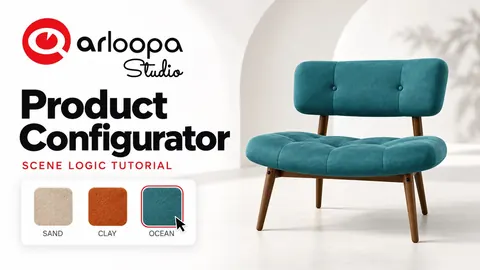
- Add Scene Logic interactions, such as tapping the model to play a sound or change its color with Set Model Color.
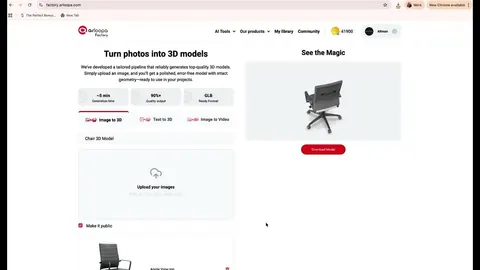
- Start from an image instead of text with the image-to-3D tool when you have a reference sketch or photo.
Frequently asked questions
What makes a good Genie AI prompt?
Describe one object with its shape, material, colors and style. Short, specific prompts usually work better than long descriptions with several objects.
Can I use the generated model in WebAR?
Yes. After it is saved to your scene, the model behaves like any other 3D asset and can be published as WebAR or in the ARLOOPA app.
What if the result is not what I wanted?
Revise the description, adding or removing details, and generate again. Review each result before using it in your experience.
Is a Genie AI model good enough for a final campaign?
It can be, depending on the project. Generated models are well suited to concepts, props and classroom objects. For a hero product that must match the real item exactly, use a model made from the product itself, such as a scan from ARLOOPA Factory or a file from your design team.